

How To Install and Use MX Player on Firestick/Fire TV
How To Install MX Player
1. Hover over Settings
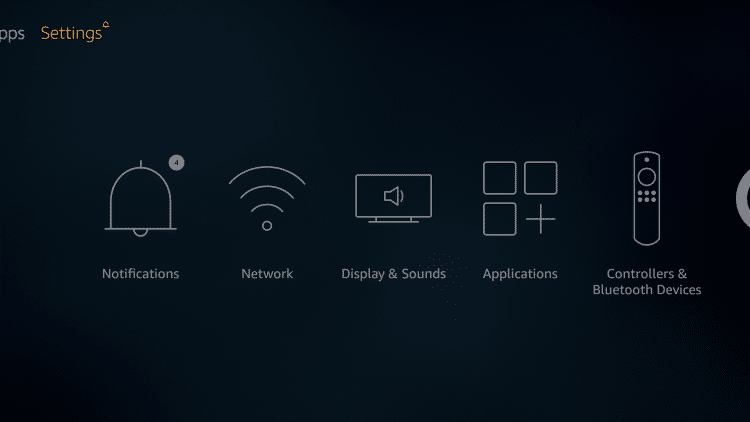
2. Click Device – this may also be labeled as “My Fire TV” on newer models
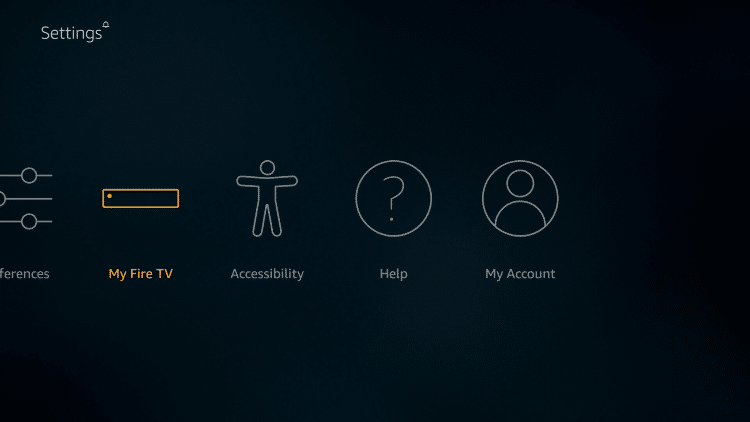
3. Click Developer options

4. Click Apps from Unknown Sources
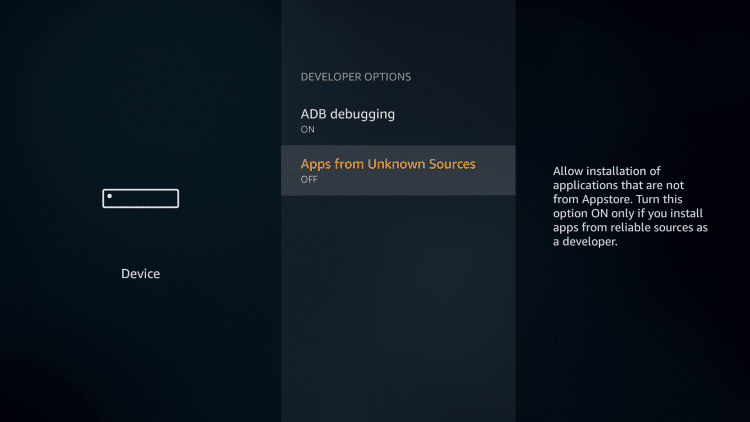
5. Click Turn On
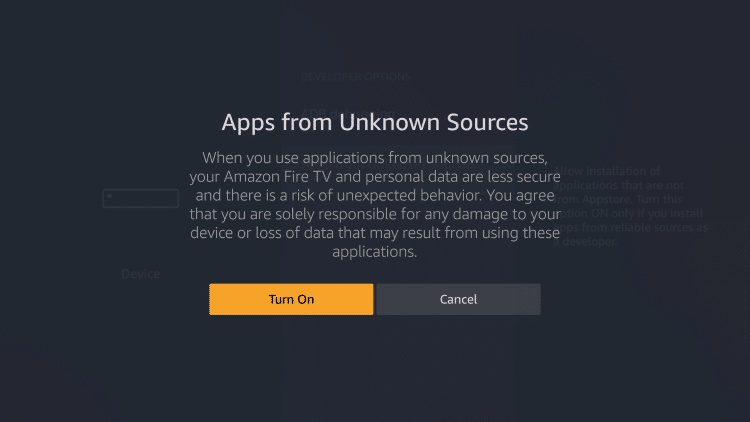
6. Go back to Firestick or Fire TV Home screen

7. Hover over search icon
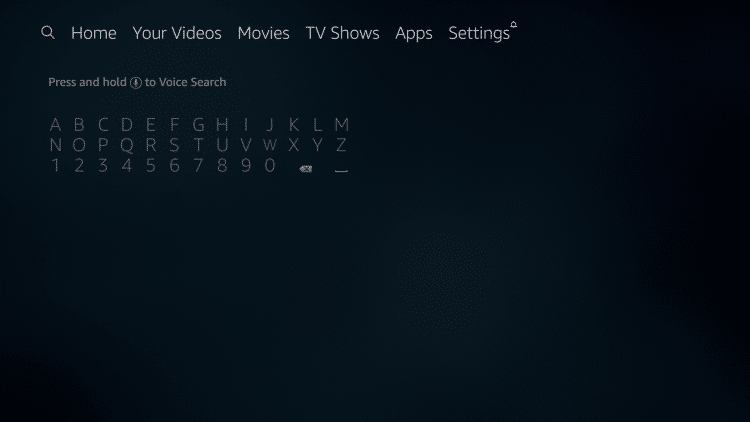
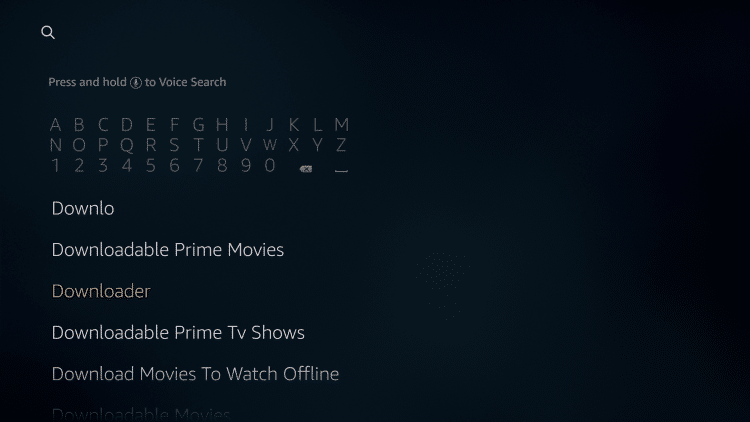
8. Type in Downloader and then click the “Downloader” text under the keyboard
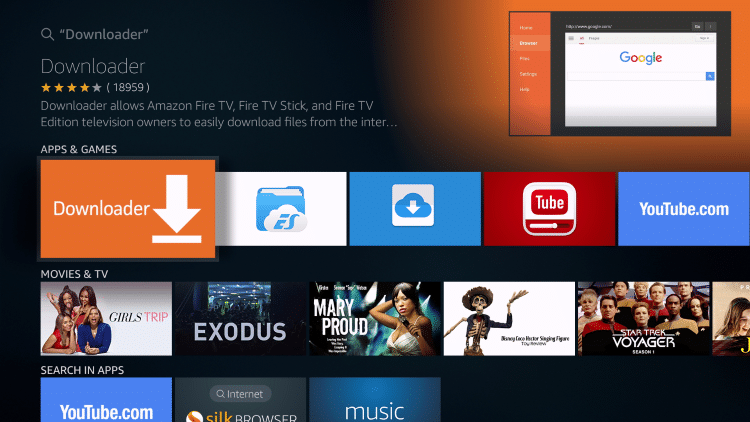
9. Click Downloader icon – you may need to scroll to the right to find this app in the list
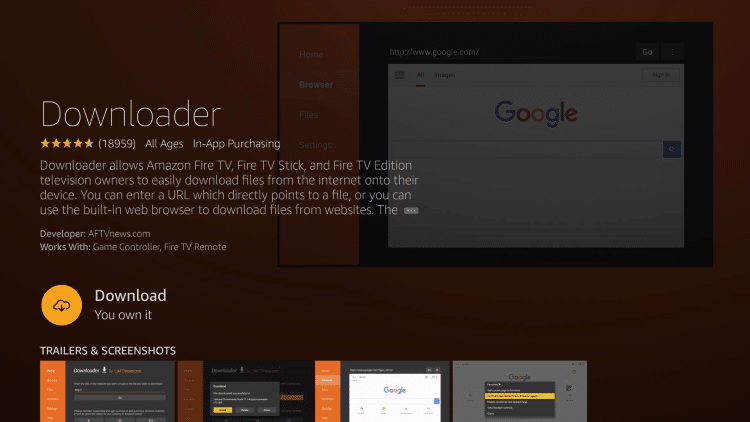
10. Click Download
11. Click Open
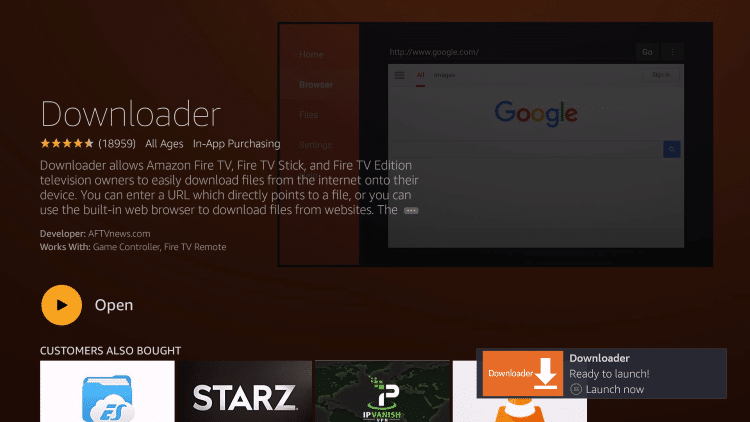
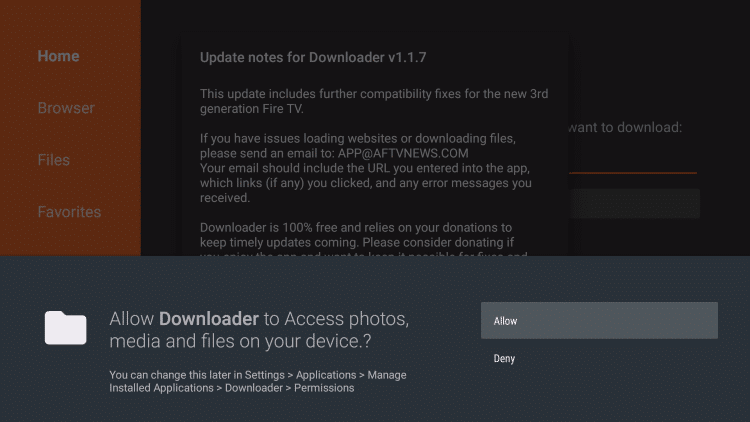
12. Click Allow
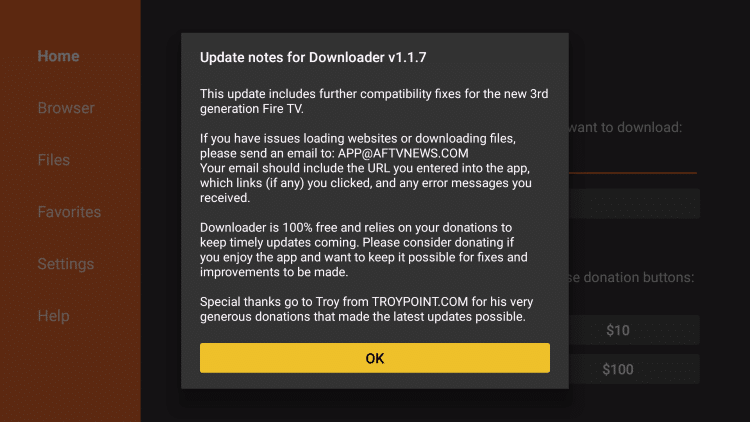
13. Click OK
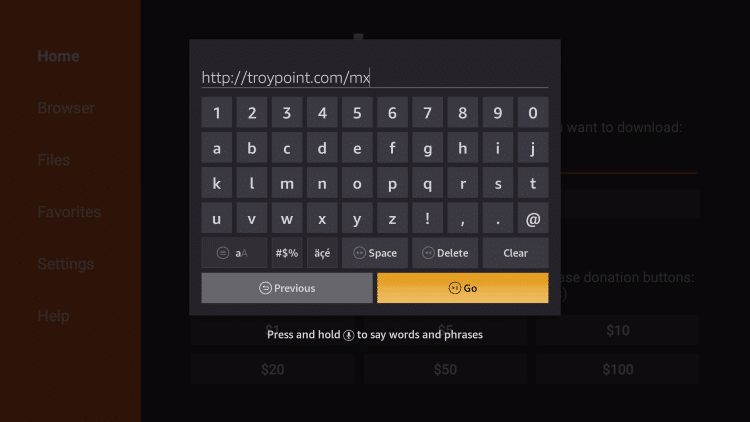
14. Type the following address and then click Go to install MX Player – troypoint.com/mx
15. Click Install
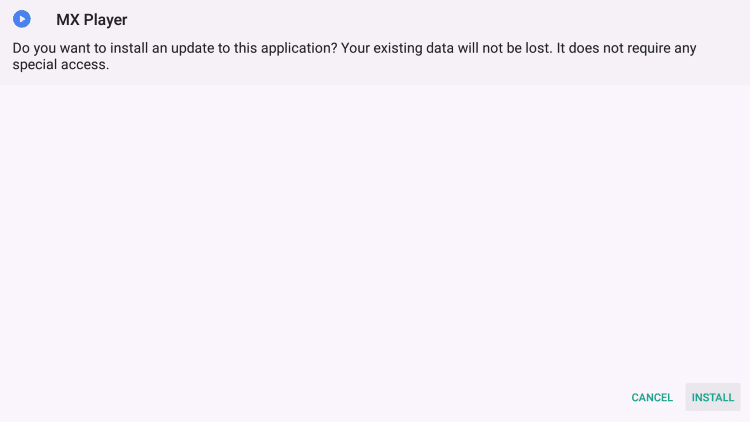
16. Click Done
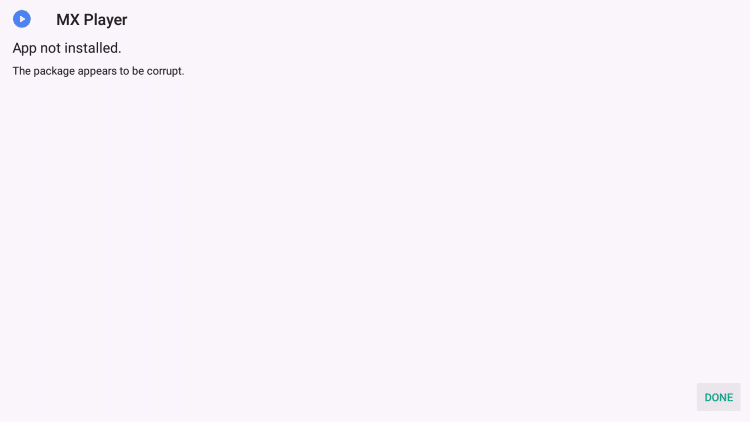
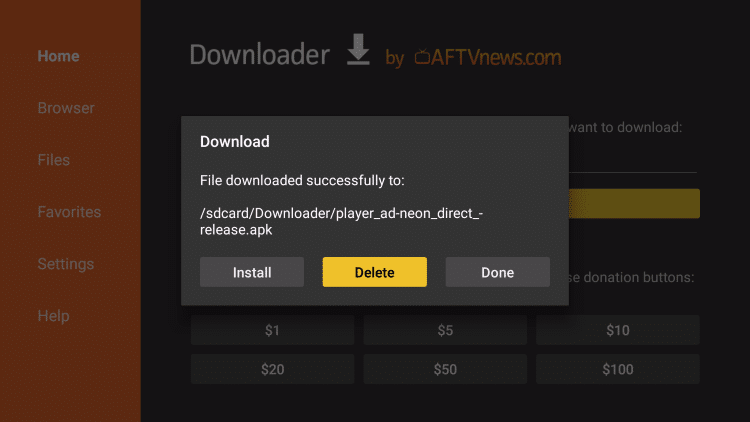
17. Click Delete
18. Click Delete Again
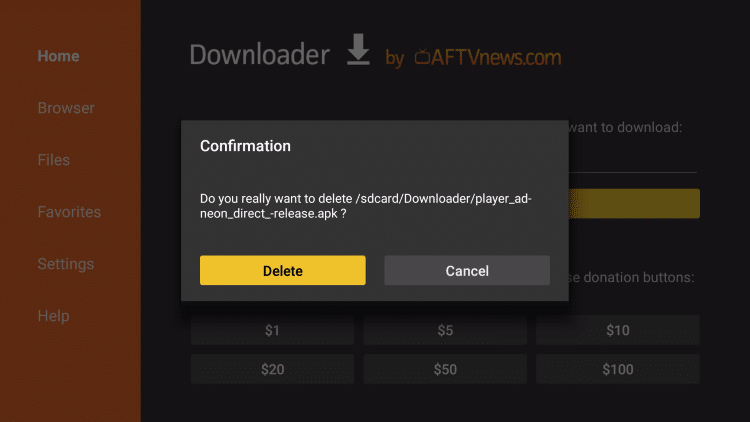
MX Player is now installed on your streaming device!
MX Player Uses and More
Whenever using a streaming service such as Cinema and others, there is always a possibility of experiencing buffering or lag. This can be a frustrating thing to encounter and often times difficult to fix.
However, installing and using MX Player can be a great way to eliminate buffering issues on your device.
In the past, YesPlayer was a popular video player on apps such as Terrarium TV and more. But with this no longer being supported, MX Player is a great alternative.
Not only does MX Player reduce buffering, but it also tends to reduce the number of ads popping up during playback. As we all know, the fewer ads experienced while streaming, the better.
If you install MX Player on your device and encounter a message that states, “This audio format AC3 is not supported”, this can easily be fixed:
Within the Settings of MX Player is also plenty of options to change the theme, style, screen size, and more.
Overall, installing MX Player is a great way to get the most out of your favorite devices and apps. For anyone who loves streaming, this application is a must-have.